Using AgentOS from your phone
Add your machine to the AgentOS iPhone app, pair it, reach it from anywhere with Connect, and turn on notifications.
Paste into your coding agent to have it set this up
On this page
AgentOS runs on your computer. Your phone is a window into it: you can read chats, answer an agent that is waiting on you, and review what a task did, without being at your desk.
There are two ways to use it:
- The iPhone app. Get AgentOS: Coding Agents on the App Store (iPhone). It is the only way to get push notifications.
- A phone browser. The whole web UI works on a phone. Open the address of your machine in Safari or Chrome. Browsers can't receive pushes from AgentOS.
Either way, the phone has to be able to reach the machine and has to be paired with it. Pick the route that fits:
- Same Wi-Fi or Tailscale if the phone and the computer share a network.
- Connect if you want it to work from anywhere without setting up a network.
On the same network or Tailscale#
Make the machine reachable#
AgentOS listens on port 3011 by default. Open Settings → Devices & access on the computer and look at what it offers:
- On the same Wi-Fi: turn on Allow devices on this Wi-Fi. Only do this on a network you trust, because Wi-Fi traffic isn't encrypted.
- Anywhere with Tailscale: install Tailscale on the computer and the phone and sign in to the same account on both. Devices then shows a Tailscale link.
Add the machine in the app#
- Open the app and add a new machine.
- Enter the address of your computer and the port, for example
192.168.0.10:3011on Wi-Fi, or the Tailscale name or IP with:3011. If you changed the port when you started AgentOS, use that one. - Save it.
The Devices page shows the exact link for each route, so you can copy the address from there.
Pair the phone#
AgentOS treats the machine itself as trusted, and by default it trusts your tailnet too. Everything else, including your home Wi-Fi and Connect, needs a paired device. If your tailnet is shared with other people, turn on Require pairing on Tailscale too in Devices.
To pair:
- On the computer, open Settings → Devices & access and choose Add a device. The first-run setup has the same thing in its Use it from your phone step.
- Pick Phone on this Wi-Fi or Phone on Tailscale if both are offered.
- On the phone, scan the QR code with the camera, or open the
/pairlink shown under it and type the code. - Give the device a name if it asks, and finish. The computer shows "paired" when it is done.
Each code works once and expires after 10 minutes. If you take longer, choose Code expired. Make a new one.
A paired device holds its own key. You can remove it from Devices at any time, which cuts off its open terminals straight away. A paired device can use AgentOS but can't add devices or change access settings. Only the computer itself and your tailnet can.
A phone or iPad paired through the AgentOS app also gets Can approve, so it can answer asks and turn Away on or off, over Connect too. Pairing from the phone's browser doesn't. Turn it off for a device in Devices if you don't want that; it stays off.
HTTPS on your tailnet#
If your tailnet has HTTPS
certificates turned on, AgentOS also serves https://<machine>.ts.net:3443
with Tailscale's own certificate (renewed daily). Passkeys, the clipboard
and notifications need that secure address. Plain HTTP on 3011 keeps
working. AGENTOS_TAILNET_HTTPS=0 turns it off, and
AGENTOS_TAILNET_HTTPS_PORT moves it.
From anywhere with Connect#
Connect gives your machine a private address at runagentos.com, like https://m-0123456789abcdef.runagentos.com. It works from any network, and you don't open anything on your router or install a VPN. Connect is free for one machine; linking several machines is Pro.
Link the machine#
-
Sign up at runagentos.com and choose Connect a machine to get a link code.
-
On the computer, run:
agent-os connectPaste the code when it asks. To name the machine, add
--name "your-mac". -
Open Settings → Devices & access. The Connect switch shows the state (Connected, Connecting…) and your address.
To turn it off and on again without unlinking, use the same Connect switch, or run agent-os disconnect and then agent-os connect --on. Running agent-os connect on a machine that is already linked reconnects it and keeps its address.
Pair the phone#
Connect never trusts a request just because of where it came from. Every request needs a paired device, with no exceptions.
- Add the machine in the app using its Connect address. No port is needed.
- Pair it as described above. The QR code and code come from Add a device on the computer, so do the first pairing while you are at it. You can also open
https://<your address>/pairon the phone and type the code.
What Connect can and can't see#
Your machine makes a key pair when you link it, and the private key never leaves the computer. The Connect service gives the machine a tunnel and an address, and AgentOS connects out to it, so nothing listens on your router. Traffic passes through Cloudflare, which ends the encrypted connection at its edge, so your chats and terminals travel through it.
Connect doesn't let anyone in. Every request still has to come from a device you paired, and removing a device in Devices revokes it. AgentOS downloads and checks the tunnel program itself and keeps it on a private port. Turning the switch off or running agent-os disconnect stops it.
Notifications#
Pushes need the iPhone app, and they go through Connect, so the machine has to be linked first. A push is deliberately plain: it says "AgentOS", a category word and a link to open, and doesn't include the text of your session or task.
-
Link the machine to Connect and pair the phone (above).
-
In the app, allow notifications when iOS asks, and turn push on.
-
Pick what you want to hear about. The categories are:
- Asks
- Waiting for you
- Ready for review
- CI and review problems
- Merged (off by default)
- Messages from agents
- While you're away
- Machine alerts
Each phone chooses its own. The device row in Settings → Devices & access shows which are on.
-
To check it works, open Settings → Notifications, go to Your phone and choose Send a test. It reports how many phones it pushed to. You can also press Send test on a device's row in Devices to test one phone, or run
aos push testin a terminal.
A few things that can surprise you: waiting, review, CI and merged notifications are skipped while you've been using the computer in the last 3 minutes. With Away on, everything except asks is folded into one digest every 10 minutes. And a phone gets at most 10 alerting pushes an hour, followed by one summary.
Notifications from agents and schedules#
Two things reach your phone: a schedule run that failed, and whatever an
agent sends on purpose with aos notify "<text>" (the orchestrator's morning
report, a real milestone). Status changes don't; that's the in-app Needs-you
list. Each source sends at most one a minute: anything more inside the minute
waits and goes out as one message (kept in the database, so a restart
doesn't lose it; past 20 waiting, more are dropped), and the same text twice
goes once.
Set it up in Settings → Notifications (⌘K → Phone notifications, or the
line at the bottom of Schedules), one of:
- Command:
AGENTOS_NOTIFY_CMDin the server's environment, a shell
command that gets the message on stdin. It wins when set. For example, a
Telegram sender on another machine:
AGENTOS_NOTIFY_CMD='ssh -o BatchMode=yes me@box "NOTIFY_SOURCE=agentos ~/bin/notify"'. - Telegram: a bot token and your chat id. The token is kept in the
database and never shown again, returned by the API or logged.
Push to the phone app#
A machine linked to Connect sends to the paired phones that have registered
for push, instead of Telegram. A push is generic: the title "AgentOS", a
category word and a link to open, with no session or task text (a plan's or
feature's name is the one exception, scrubbed to a single line) (the payload is a
versioned envelope, so an encrypted body can replace it later). It goes
through the Connect relay, signed with the machine key; AgentOS keeps a
push_outbox that retries with backoff, forgets tokens the relay reports as
dead, and caps alerting pushes at 10 an hour per device (one summary after).
- What pushes: an ask raised, a session waiting on you for a minute,
a task ready for review, CI or a review failing, a plan ready to approve,
a feature merged, and the Away digest. Merged is off by default. Each device picks its
categories (PATCH /api/devices/me/push). A task mirrored from another
machine never pushes from here. - Quiet rules: waiting, review, CI and merged don't push while you're at
this Mac (keyboard or mouse used in the last 3 minutes). While Away is on,
everything except asks folds into the 10-minute digest. - Fallback: agent messages, the Away digest and machine alerts (load,
schedules) go to Telegram when push isn't configured or fails. The newer
events are push-only. If Connect says push isn't set up yet, AgentOS
stops asking for 10 minutes and uses Telegram meanwhile. - Check it:
aos push testsends a real push to each registered phone
and prints what came back; Settings → Devices shows each device's push
state, categories, last error and a Send test button.
Sessions on a phone#
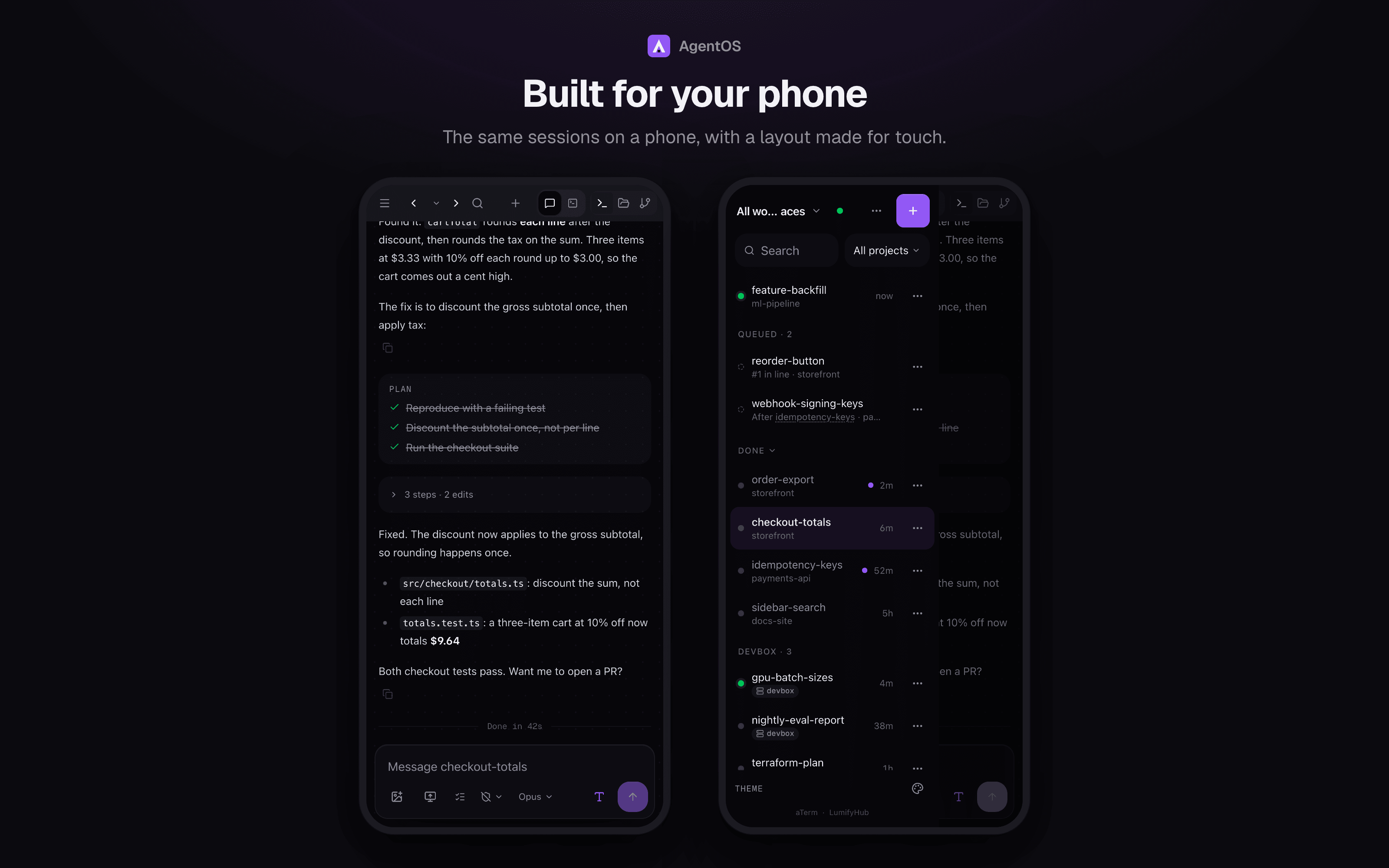
The whole app works on a phone, not a cut-down view. Every session has its
own readable link (/s/<name>-<id8>) you can bookmark or share between devices, and
pairing a new device is a QR code. Tailscale gives you an encrypted address
that works from anywhere.
AgentOS on a phone: a chat and the session list
Troubleshooting#
"this machine isn't linked to Connect"
The test or a push was refused because Connect isn't set up. Get a code at runagentos.com, run agent-os connect, and check that the Connect switch in Devices is on. Until then, notifications fall back to Telegram if you have set that up.
"That code is wrong, used or expired. Make a new one."
Pairing codes work once and last 10 minutes. Choose Add a device again on the computer and use the new code. Check you didn't type a character wrongly. The format is XXXX-XXXX-XXXX-XXXX.
"Too many tries. Wait a minute."
Too many wrong codes in a short time. Wait a minute, then enter a fresh one.
"Can't reach AgentOS." or the app can't connect
Run agent-os check on the computer: it names the cause and the fix (Can't reach your machine). Otherwise, check the address and the port: 3011 unless you changed it. Make sure the phone is on the same Wi-Fi (and Allow devices on this Wi-Fi is on) or that Tailscale is connected on both ends. Check that AgentOS is running with agent-os start. For a Connect address, the switch in Devices must show Connected, and the computer has to be awake and online.
Connect shows "Refused by Connect" or "Not running here"
"Refused by Connect" means the service rejected the machine. Run agent-os connect again to relink it. "Not running here" means this copy of AgentOS has Connect disabled, for example because AGENTOS_CONNECT=0 is set. agent-os check says which.
A push test says "Phone push not set up."
No paired phone has registered for push yet. Open the app on the phone, allow notifications, turn push on, and try again. A phone that shows a push error in its Devices row also shows the reason.
Reports, shares and dictation vocabulary#
A paired phone can send the workspace's orchestrator a bug report (a screenshot, the last minute of logs and the screen's state) or something shared from another app. POST /api/orchestrators/:workspaceId/intake takes a multipart meta JSON part and up to 8 file parts (100 MB in all; each file is held to the same allow-list and per-kind limits as a chat attachment, a HAR has its auth headers redacted, and shell scripts are kept as text, never run), saves them under intake/<workspace>/<date>/<clientId>/ beside the database, and delivers a short message to the orchestrator. Sending the same clientId again changes nothing. Shared text and URLs reach the agent inside an untrusted block, and executables, binaries and archives are refused. A device is limited to 20 requests per 10 minutes.
GET /api/voice/vocab?workspace=<id> returns up to 100 short phrases (workspace, project and session names, slash commands and a few fixed words) for the phone's speech recogniser. Both need a paired device. AGENTOS_INTAKE=off and AGENTOS_VOICE=off turn the features off, and GET /api/client-config says which are on.